Token maker › Pixel art token maker
Pixel art token maker for D&D
Build a pixel art token for your character or monster right in your browser. Start from a random character, change the parts and colours, paint over it pixel by pixel, or trace a picture of your own. Then save a transparent PNG for your virtual tabletop: drawn at up to 256 × 256 pixels, with Roll20 (280 × 280) and Foundry VTT (400 × 400) sizes if you want them.
12 tokens made with the tool
Every token below came straight out of the creator when we pressed Surprise me and saved the result at the default 256 × 256 size. None was retouched. Yours can start the same way, or from scratch.
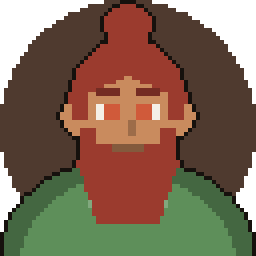
Bearded fighter 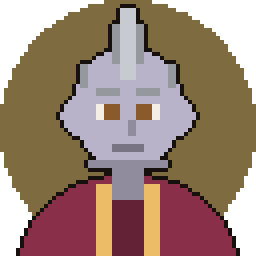
Crested helm 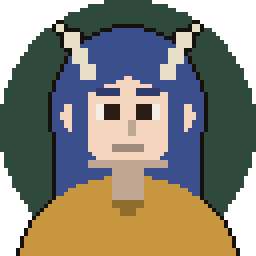
Horned sorcerer 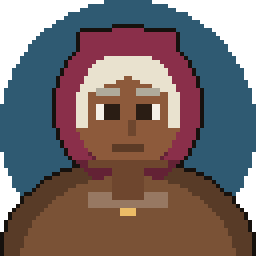
Hooded traveller 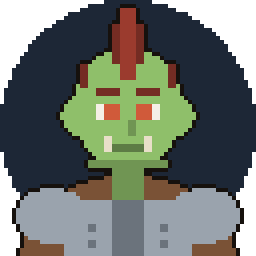
Orc raider 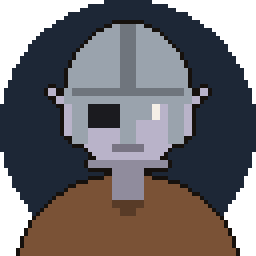
One-eyed soldier 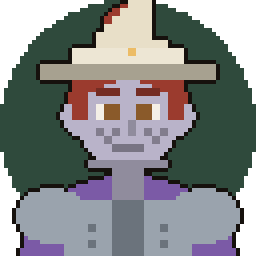
Wizard hat 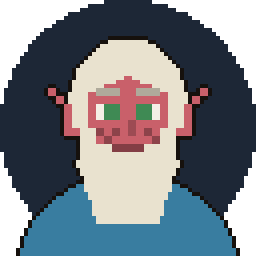
White-bearded elder 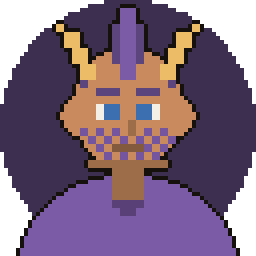
Gold-horned mystic 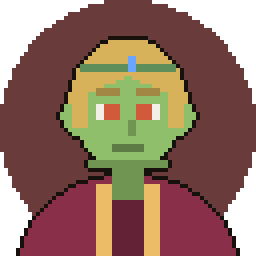
Circlet and red robe 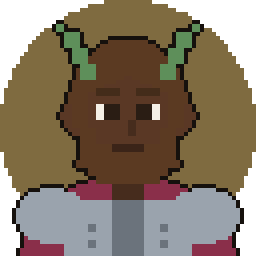
Green horns 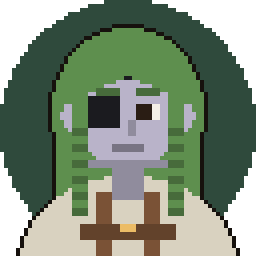
Braided scout
Why pixel art tokens read well on a map
On a battle map, a token is often only one grid square, which can be a few dozen to roughly a hundred pixels on screen. Fine detail disappears at that size. Pixel art works with that limit instead of fighting it:
- Hard edges survive. Flat colours and clean outlines stay recognisable when the token is small, where soft shading and thin lines turn muddy.
- The silhouette does the work. A hood, horns, a wizard hat or a crest tells players who is who at a glance. The creator builds head-and-shoulders figures on a 32 × 32 grid, drawn to fit inside a round token.
- Few colours mean strong contrast. A coloured backdrop behind the figure separates it from the map beneath and from your tabletop's token ring.
- You can check it. The creator shows a Zoomed out preview next to the full-size sprite, so you can judge it at roughly map size while you work.
The same token at three display sizes. It still reads at 40 pixels.
What you can customize
Build a character
- Hair style: bald, short, long, braids, bun, mohawk
- Hair, skin, eye and outfit colours
- Beard, ears (round, pointed, tusks) and markings (scar, eyepatch, war paint, freckles)
- Headgear: helm, circlet, wizard hat, hood, horns, with its own colour
- Outfit: tunic, armour, robe, leather or cloak
- Backdrop colour, or none
Paint it yourself
- Pencil, eraser, fill, colour picker, line and box
- Lighten and darken for shading
- Brush sizes 1, 2, 4 and 8 pixels, and a Mirror mode that draws both sides at once
- A palette, colour ramps and a custom colour
- Optional dark outline, grid toggle, zoom, Undo and Redo
- Canvas sizes from 32 × 32 up to 256 × 256
Start from a picture
- Choose Use my own image (PNG, JPEG, WebP or GIF, up to 20 MB)
- Fit the whole picture, or fill with the centre square
- Trace it into pixel art, then keep painting
- The picture is processed on your device
Save it
- PNG with a transparent background
- Export at 256, 128 or 64 pixels square, or enlarge the art with hard pixel edges to 280 × 280 (Roll20) or 400 × 400 (Foundry VTT)
- Optional one to three letters, or Letters only if you want no picture
- The saved PNG carries its editable parts, so you can drop it back in and keep editing
Using your PNG in Roll20, Foundry VTT and Owlbear Rodeo
The art is drawn at up to 256 × 256 pixels. You can save it at that size, or pick a Roll20 (280 × 280) or Foundry VTT (400 × 400) preset, which enlarges it with hard pixel edges. Virtual tabletops scale a token to the map grid themselves, so you do not need to resize it to match a square. The steps below are the general idea; menus change, so check each tool's own documentation if something looks different.
- Roll20. Upload the PNG to your game and drop it onto the map as a token, or use it as a character's token image. Resize the token on the map to fit your grid.
- Foundry VTT. Upload the PNG through the file browser, then set it as the token image in the Actor's or Token's configuration. Foundry fits it to the token's size on the grid.
- Owlbear Rodeo. Drag the PNG into a scene, or add it to your assets, and place it as a character. It scales to the scene's grid.
Some tabletops may smooth a small image when they scale it, which can soften hard pixel edges. The Roll20 and Foundry VTT presets give them a larger, crisp image so there is less to enlarge. For grid sizes and image dimensions, see the token size guide.
Frequently asked questions
Is the pixel art token maker free?
Yes. It is free to use, with no account and no sign-up.
What size are the tokens?
You can save at 256 × 256, 128 × 128 or 64 × 64 pixels. The art itself is drawn at up to 256 pixels; the Roll20 (280 × 280) and Foundry VTT (400 × 400) presets enlarge it with hard pixel edges, no smoothing.
Can I make a monster or NPC token, not just a player character?
Yes. The parts include green, red, slate and ash skin tones, tusks, horns, pointed ears and war paint, and you can paint over anything. For a quick placeholder, use Letters only.
Can I turn my own artwork into a pixel art token?
Yes. Choose Use my own image, pick a file, and trace it into pixel art. It is resized and traced on your device, and nothing is uploaded.
Is the background transparent?
Yes. Saved PNGs are transparent where nothing is drawn, so your tabletop can show its own ring or frame. If you chose a backdrop colour, that colour is part of the image.
Can I edit a token after saving it?
Yes. The saved PNG remembers its editable parts. Choose Use my own image and drop that PNG back in to keep working on it.
Can I use the tokens in my games?
Yes. CartoSmith claims no rights over the tokens you create. They are yours to use in your games and projects.
Ready to make yours?
Press Surprise me for a starting point, then make it your own.